🛠️ How to set up an Odoo 19 development environment with PyCharm on Ubuntu
Odoo 19 is the latest version of the popular open-source ERP, developed in Python (requires Python 3.12 or later), using PostgreSQL as its database and JavaScript for the front end. Ubuntu is an excellent choice for development thanks to its stability, regular updates and broad hardware compatibility.
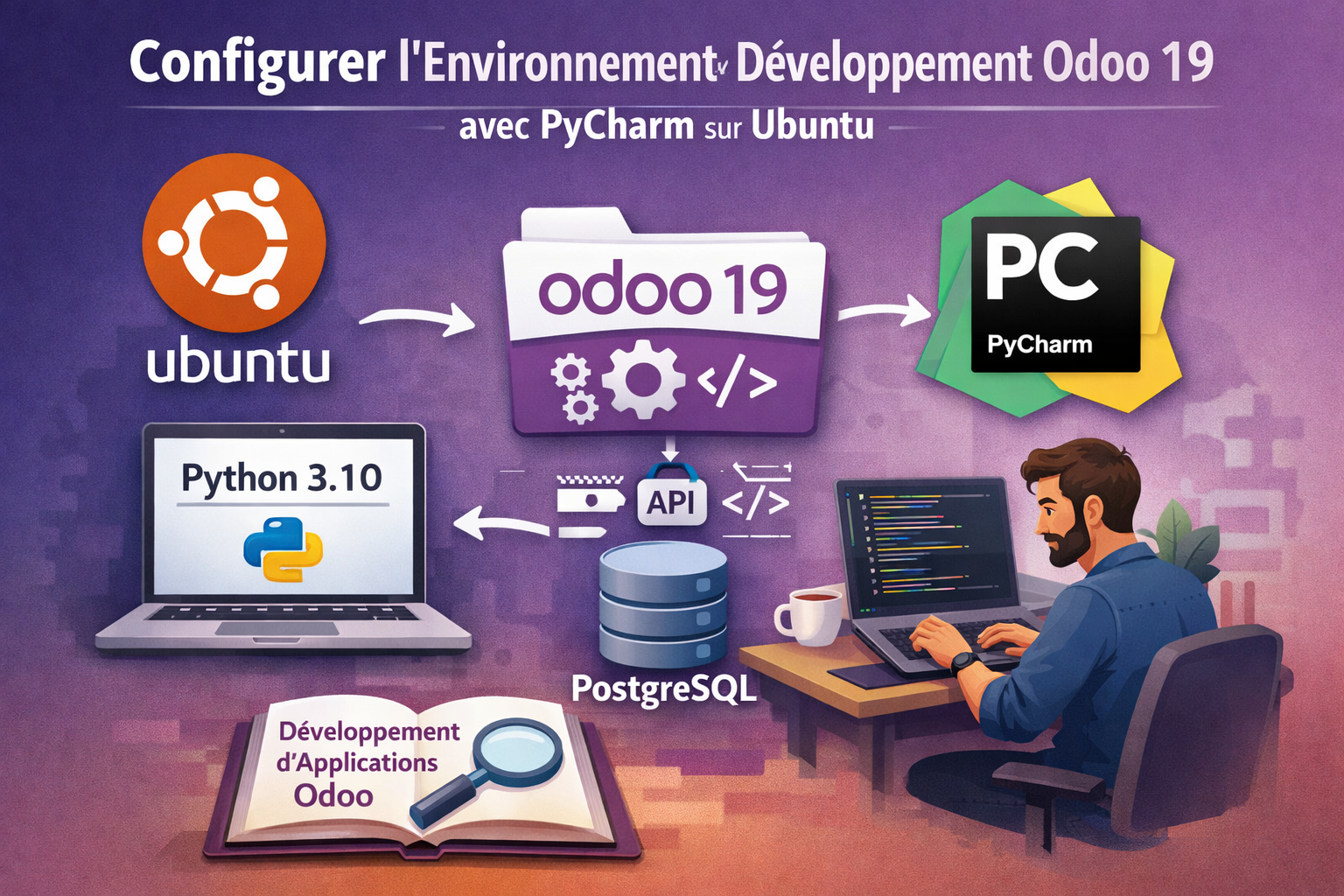
📥 Installing the PyCharm IDE
PyCharm Community Edition is recommended for Odoo development.
Installation via terminal:
sudo apt update
sudo apt upgrade
sudo snap install pycharm-community --classic
Make sure you have:
- at least 4 GB of RAM (8 GB recommended)
- an SSD with at least 5 GB of free space
- a decent screen resolution
- a 64-bit Linux with GLIBC ≥ 2.27
🐍 Installing Python 3.12
Ubuntu does not include Python 3.12 by default. Add the PPA deadsnakes, then install Python:
sudo add-apt-repository ppa:deadsnakes/ppa
sudo apt update
sudo apt install python3.12 python3.12-dev
Also add the required libraries:
sudo apt install build-essential libjpeg-dev libpq-dev libxml2-dev libssl-dev libffi-dev li
📦 Web dependencies & tools
Install the web dependencies required by Odoo:
sudo apt install -y npm
sudo ln -s /usr/bin/nodejs /usr/bin/node
sudo npm install -g less less-plugin-clean-css
sudo apt install -y node-less
Install WKHTMLTOPDF to generate PDF reports:
sudo wget https://github.com/wkhtmltopdf/wkhtmltopdf/releases/download/0.12.5/wkhtmltox_0.12.5-1.bionic_amd64.deb
sudo dpkg -i libssl1.1_1.1.1f-1ubuntu2_amd64.deb
🗄️ Installing PostgreSQL
Odoo uses PostgreSQL as its database:
sudo apt install postgresql postgresql-client
Create a PostgreSQL user for Odoo:
sudo su - postgres
createuser --createdb --username postgres --no-createrole --no-superuser --pwprompt odoo19
psql
ALTER USER odoo19 WITH SUPERUSER;
\q
exit
📥 Getting the Odoo 19 source code
Install Git, then clone the official repository:
sudo apt install git
git clone https://www.github.com/odoo/odoo --depth 1 --branch 19.0 --single-branch odoo19
⚙️ Configuration in PyCharm
- Open PyCharm, then Open the odoo19 folder.
- In Terminal (Alt+F12), create the virtual environment:
sudo apt install python3.12-venv
python3.12 -m venv venv
source venv/bin/activate
- Install the Python dependencies:
curl -sS https://bootstrap.pypa.io/get-pip.py | python3.12
pip install -r requirements.txt
⚙️ Create the odoo.conf file
In the odoo19 root folder, create a file named odoo.conf :
[options]
admin_passwd = admin
db_host = localhost
db_port = 5432
db_user = odoo19
db_password = ton_mot_de_passe
addons_path = /home/ton_user/odoo19/addons
http_port = 8019
🧠 Adding the Python interpreter in PyCharm
In Settings → Project: odoo19 → Python Interpreter, choose the interpreter of the venv Python 3.12 you created.
▶️ Run configuration
In Edit Configurations → + → Python :
- Name : Odoo19
- Interpreter : your Python venv
- Script Path : odoo-bin
- Parameters : -c odoo.conf
- Working Directory : path to odoo19
🚀 Testing Odoo
Start the project from PyCharm.
Then open in your browser:
You should see the Odoo database management screen.
🎉 Conclusion
You now have a complete environment to develop Odoo 19 with PyCharm on Ubuntu.
Start writing here ...